
Clear handoff from OMS
Templates and BOM definitions created in OMS become the statuses and components the floor sees on each manufacturing order.
After OMS defines BOM SKUs, Synsets, and Kanban templates, the warehouse team builds finished units and moves orders toward shipment. This page ties together the Pending, Manufacture, and Processing parts of that path, and calls out Processing behaviors that apply only to manufacturing orders. Manufacturing orders behave like focused work requests: they tell the warehouse how many BOM SKU units to assemble and which Kanban statuses apply.
Finish OMS manufacturing setup
Complete BOM SKU and Synset setup, assign a Kanban template, and confirm any Instructions or Attachment files you expect on the Synset. See Manufacturing - setup.
Understand the workflow
The warehouse workflow moves through three clear stages:
ShipEdge supports two manufacturing modes before work moves to Processing:
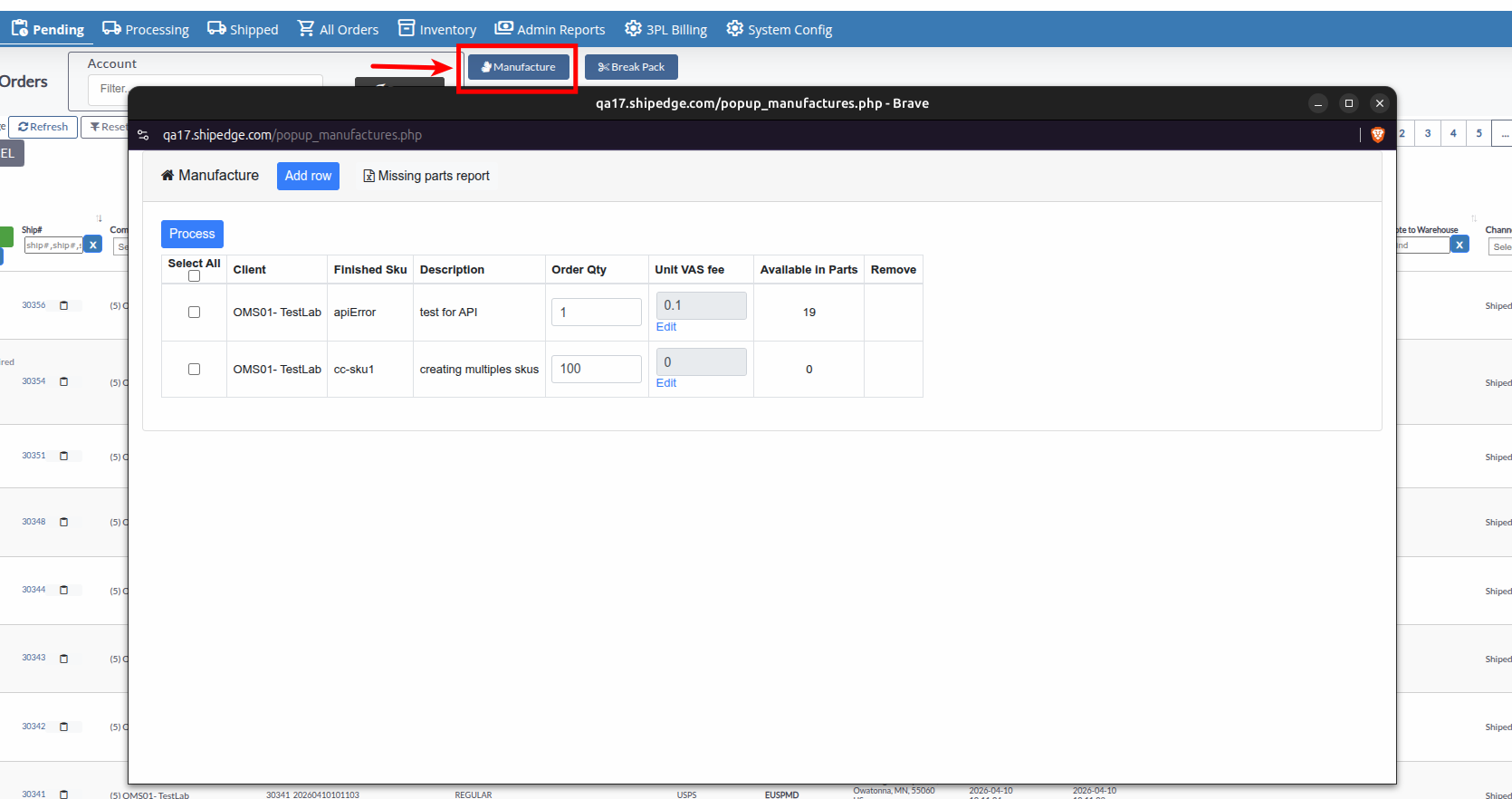
The steps below are the same path for both. In the top toolbar of the Manufacture window, you can also click Missing parts report to download an Excel report listing all component parts needed to assemble pending backorders.
Open Manufacture from Pending
In WMS, go to Pending, then click Manufacture.
Add a manufacturing row
Click Add row to create a new manual build line.
Set Client and BOM SKU
Choose the Client. Once chosen, select the target BOM SKU (Finished Sku).
Enter Order Qty
Enter the number of units to build in the Order Qty column. The value must be a whole number greater than zero and cannot exceed the quantity in Available in Parts.
Adjust Unit VAS fee (Manager access required)
The Unit VAS fee field is read-only in the table. To update it, click the Edit link next to the fee:
0.10).Process the manufacturing line
Select the checkbox for each row you want to build (or click Select All in the table header), then click Process. The system creates the manufacturing order and redirects your view to Processing. (Tip: To discard a manual row before processing, click the red ❌ icon in the Remove column).
Open Manufacture from Pending
In WMS, go to Pending, then click Manufacture.
Verify or adjust Order Qty
The Order Qty column defaults to the exact quantity needed to satisfy the orders. The value must not exceed Available in Parts.
Update Unit VAS fee if needed (Optional)
Click the Edit link in the Unit VAS fee column to open the Change VAS fee modal, enter the fee, and click Save.
Select orders and click Process
Select the checkboxes next to the orders you want to run (or select Select All), then click Process. The orders move to Processing with order type MANUFACTURE.
Once submitted, manufacturing orders appear in the Processing table identified by an industry icon next to the Order ID and the order type MANUFACTURE.
Filter manufacturing orders
In WMS, click the Processing tab. Click the Manufacturing quick filter button on the top.
Review and print Work Order and Instructions
Click the Get Work Order button on any manufacturing order row:
×) in the top right corner to close the preview.Open the order Kanban board
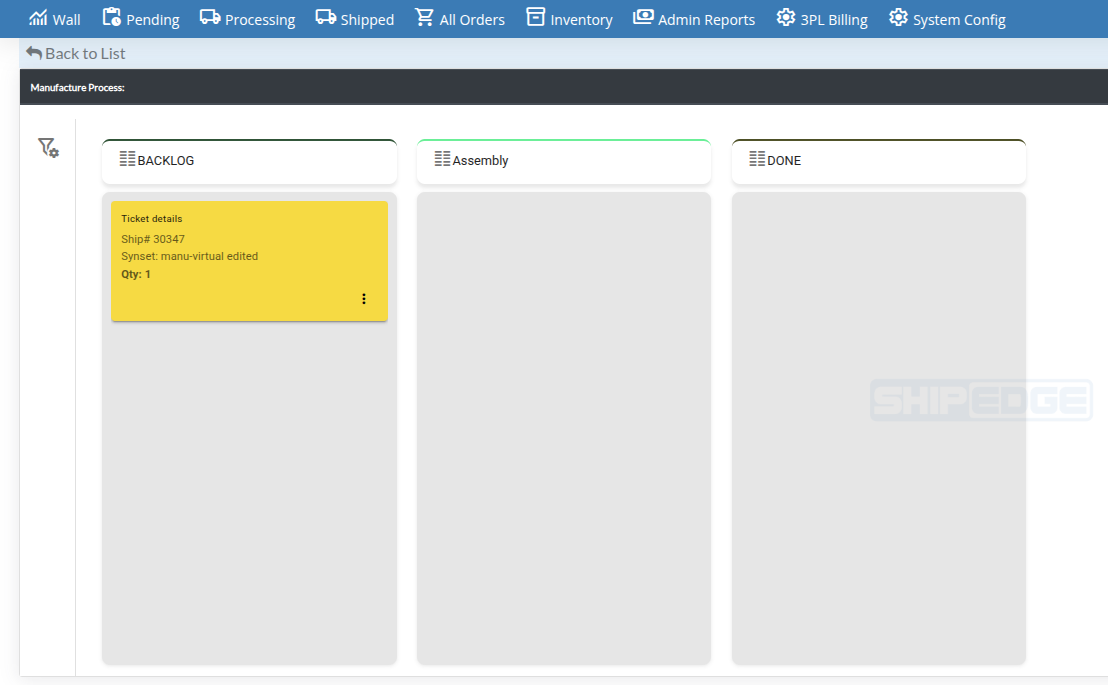
Click the View Kanban link on the order row. The board opens in a new tab showing the assigned stages from OMS. Move cards between stages as assembly progresses. Click Back to List to return to Processing.
Complete manufacturing for a single order
Complete manufacturing in bulk (Multiple Orders)
Kanban templates are defined in OMS (column names, order, and rules like Backlog and Done). In the warehouse, each template column is the status a manufacturing order shows while it moves through assembly—operators advance work from one stage to the next until the job reaches Done and can continue toward shipping.
If you change a BOM SKU’s template, that change applies to new manufacturing orders only, not orders already in progress. Full template setup lives in Manufacturing - setup.
Templates and BOM definitions created in OMS become the statuses and components the floor sees on each manufacturing order.
Pending and Processing stay the central places to select work, run bulk actions, and finish labels when the order is ready to ship.
Processing includes a Manufacturing quick filter and an industry icon badge so you can quickly isolate assembly jobs.
Column names from the assigned template map to statuses on live manufacturing work until the job is done.
Verify BOM SKUs, components, and Kanban templates before large builds so the floor does not stop for missing Synset data.
On busy Processing screens, use the Manufacturing quick filter before other filters so assembly work stays visible.
Use Missing parts report in the Manufacture modal to verify raw material stock before scheduling production runs.
Complete orders by moving cards to Done in Kanban or by clicking Complete Manufacturing to assign finished goods to a bin.
| Problem | What to check |
|---|---|
| No manufacturing actions on Pending | Confirm the Manufacturing module and warehouse preferences; see Manufacturing - setup. |
| Cannot edit Unit VAS fee | Editing requires warehouse manager access (UserWH). Non-managers receive a permission alert. |
| Cannot exceed Available in Parts | The system prevents processing any order where Order Qty exceeds available raw component stock. |
| Alert on Mark as shipped | Manufacturing orders cannot be marked as shipped directly. Use Complete Manufacturing or move the card to Done in Kanban. |
| Alert on Pause Ship | Pause Ship is not supported for manufacturing orders. Coordinate temporary assembly holds directly on the warehouse floor. |
| Wrong or missing Kanban columns | Template assignment on the Synset in OMS; template edits apply only to new orders. |
Because manufacturing orders represent internal assembly jobs rather than outbound parcel shipments, the following rules apply:
"This is not a valid action for Manufacture type orders.""Manufacture type orders cannot be marked as shipped. Please use Complete Manufacturing or move to Done in the Kanban view."