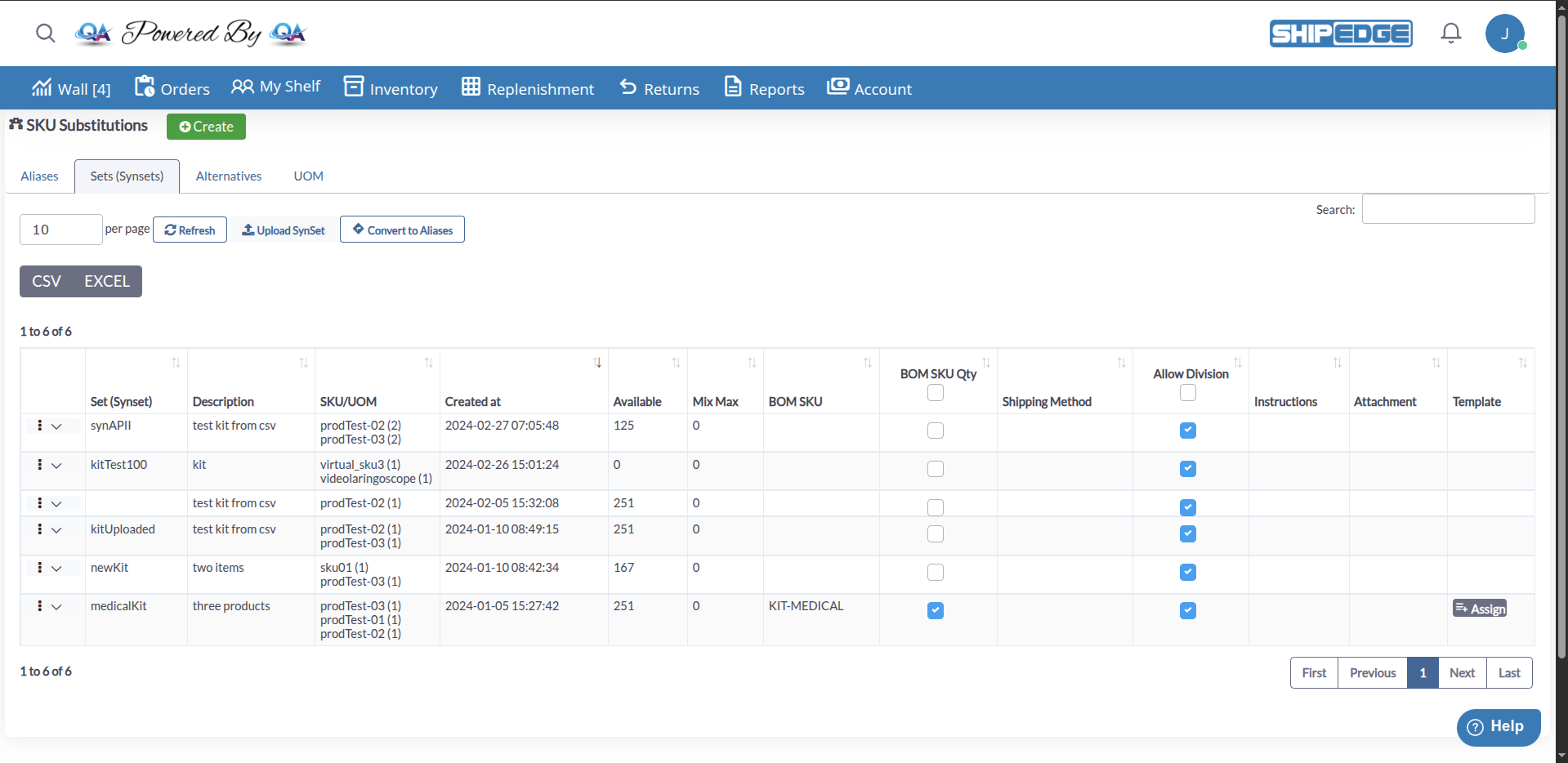
SynSets allow you to group multiple individual SKUs and sell them together as a single unit. When a customer orders a SynSet, the system automatically deducts inventory from all included SKUs.
For example, you can create a “Gift Basket” that includes 3 chocolates, 2 candles, and 1 gift card. When someone purchases the Gift Basket, ShipEdge Core automatically reduces inventory of each individual item.
After creating a SynSet using either method, you’ll need to complete the configuration:
Complete basic fields
In the Edit (Synset) or Create (Synset) dialog (SKU Substitutions):
Name: Unique SynSet name (required)
Description: Optional
Mix Max: Optional (number)
Bom SKU: Optional combobox—must be an existing product SKU
Shipping Method: Optional
Allow Division: Optional (tooltip: dividing SKUs into separate boxes during processing)
If manufacture is enabled for the warehouse: Instructions: (max 255 characters) and optional Attachment (PDF only, max 2MB), with a note that they print with manufacturing work orders in WMS
Add component SKUs
In the assigned-items grid:
If you started from Catalog, the first SKU is already listed
Click Assign to open the picker, choose SKU/UOM and quantity
Specify the Quantity of the SKU
Click Assign to add the SKU to the SynSet
Optional: Assign Template (enabled when a Bom SKU is selected)
Remove a line with the remove control (X) in the row
Configure BOM SKU (Optional)
The BOM SKU (Bill of Materials SKU) is a main SKU that represents the complete bundle:
Enter the SKU code (must exist in your product catalog)
If you specify a BOM SKU, the system will mark that SKU as “BOM” in the product catalog
Useful for integrating with external systems or marketplaces
The BOM SKU must exist in your product catalog before assigning it
If the SKU doesn’t exist, you’ll see an error: “BOM SKU does no exist, Create SKU”
Save
Click Save. You must have at least one assigned item; otherwise the system shows It’s necessary to add at least one item.
The Allow Division option gives warehouse operators flexibility when packing orders containing SynSets:
How it works: Check this option to enable dividing SKUs from the SynSet into separate boxes during processing.
Main use: Useful when a SynSet contains large or bulky items that cannot fit together in a single standard box, or when items require different packaging types.
Configuration: Found as a checkbox during SynSet creation or editing.
You can export SynSets data directly from the SynSets table in SKU Substitutions:
Navigate to SKU Substitutions
Go to Inventory, then click SKU Substitutions button.
Go to SynSets Tab
Click on the Synsets tab.
Export Data
Use the DataTables buttons above the grid:
CSV
EXCEL
Default filenames use the pattern synsets_YYYY_MM_D__HH_mm_ss plus the file extension. Exports are limited to 5,000 rows per download; if there are more records, narrow filters and export again.
Filter Before Export (Optional)
Apply filters to the table to export only specific SynSets before clicking the export button.
You can download CSV templates for creating SynSets:
Open Upload (Synsets)
From SKU Substitutions → Synsets, click Upload SynSet. The page title is Upload (Synsets).
Download Template
Click Download Template and pick a template name from the list (each item downloads via the template export).
Templates
Templates define how CSV columns map to SynSet fields (for example Initial Template with synset, description, bom_sku, sku, quantity, and optionally UOM_name when UOM is enabled).